
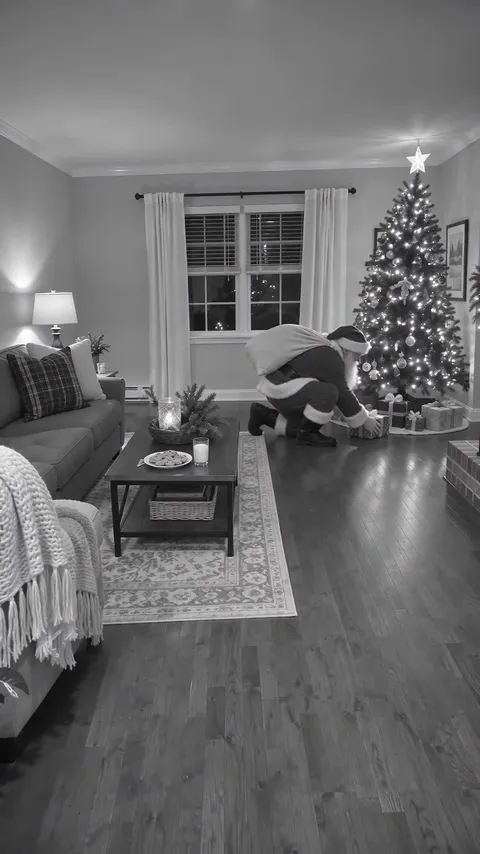
Santa Caught on Camera
Upload one photo of your own living room, front door or Christmas tree and get a 10-second night-vision home-security-camera clip of Santa tiptoeing in, leaving a present and slipping away. There is no prompt to write: the clip is 480p with sound, shaped like your photo, and costs 200 credits (about $2.00) per clip, with no subscription and credits that never expire.
- You upload: One photo of a room
- You get: 10-second video, 480p, with sound
- Price: 200 credits (about $2.00)
- Prompt: None
- Subscription: None
Your photo is turned into a black-and-white night-vision frame on your device before upload; the clip starts from it.
A wide shot of a whole room or doorway, taken from a corner, so Santa has space to walk in.
If a run fails, your credits come back automatically. The result is saved in Creations.
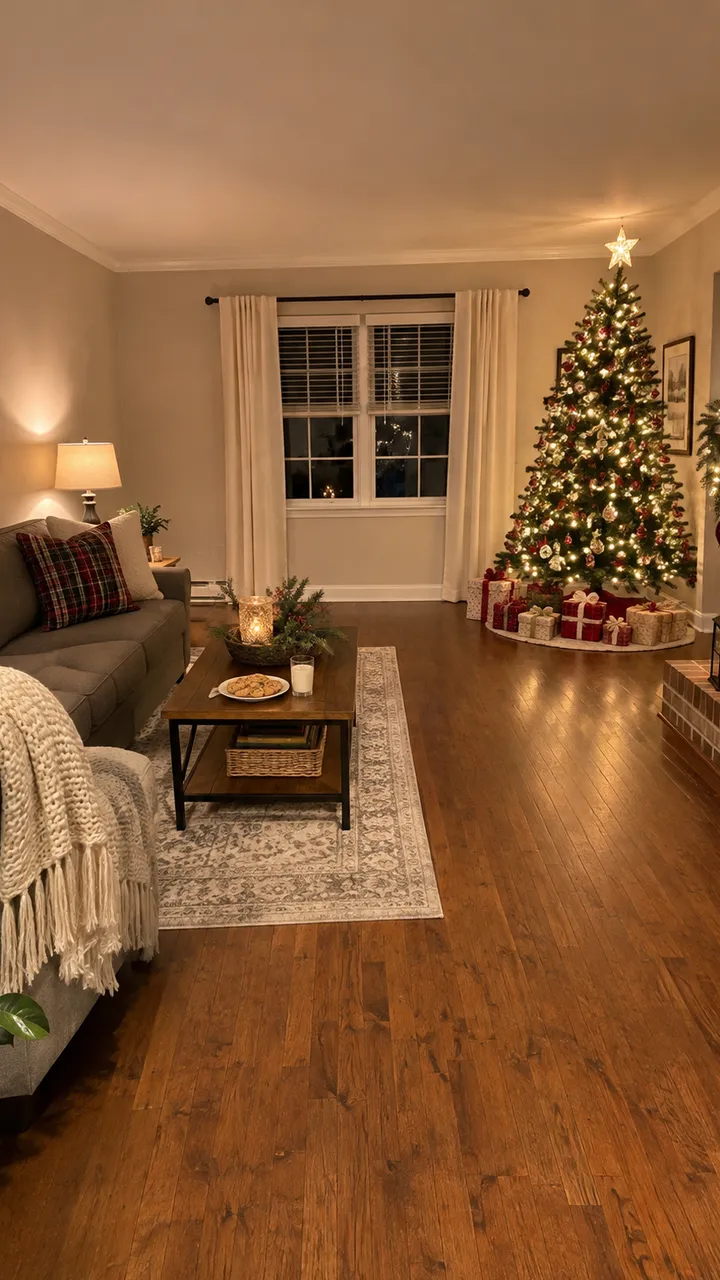
A photo of the room in, Santa on camera out
Each example shows the photo that went in and the clip that came out.
Photo Living room with a Christmas tree
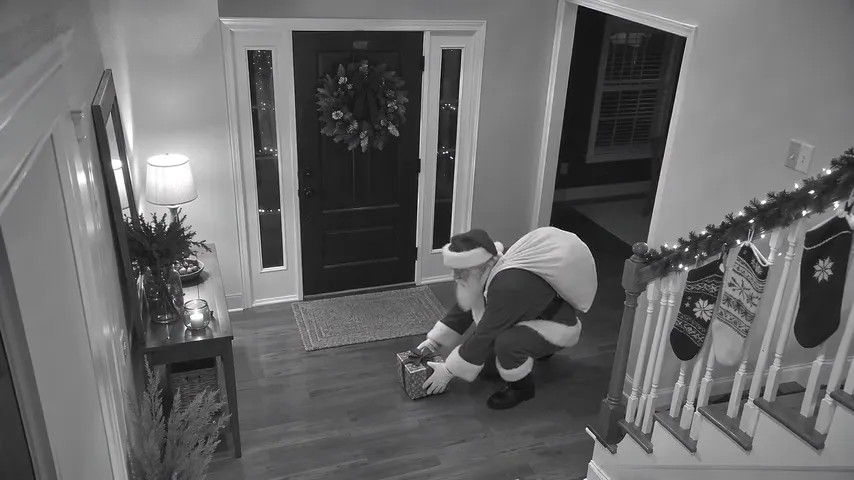
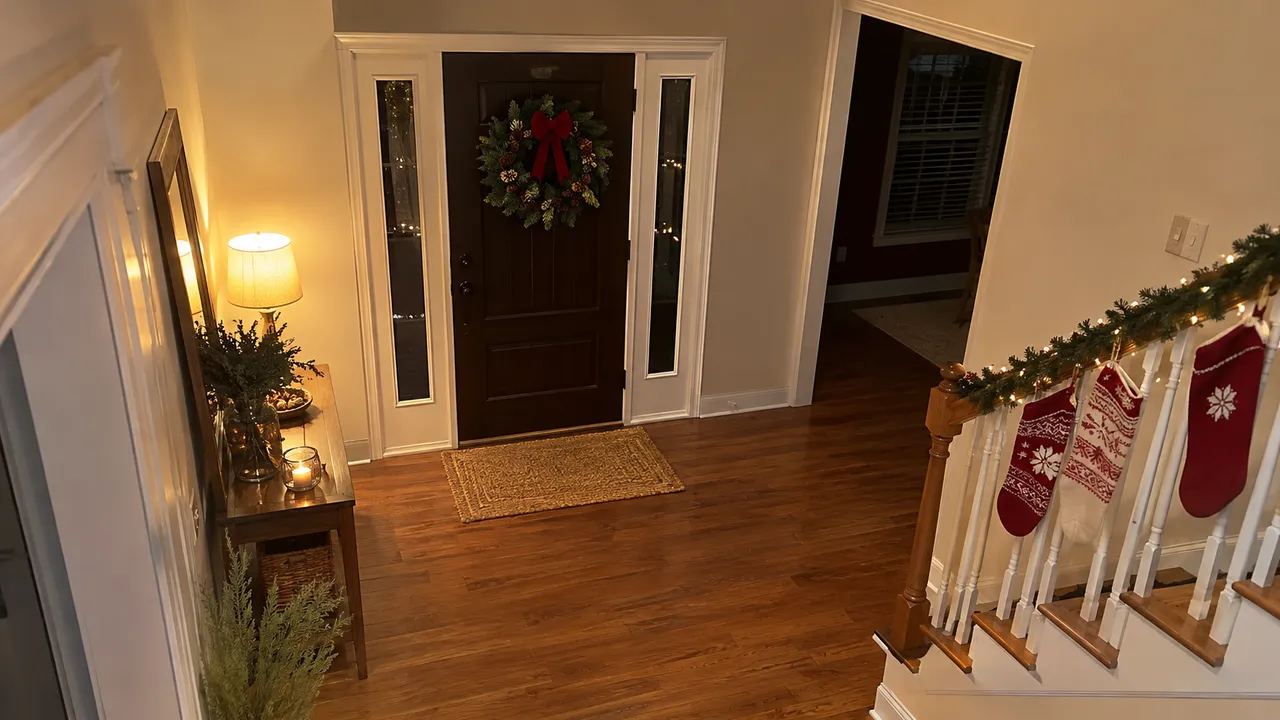
Photo Front hall by the doorTouched up
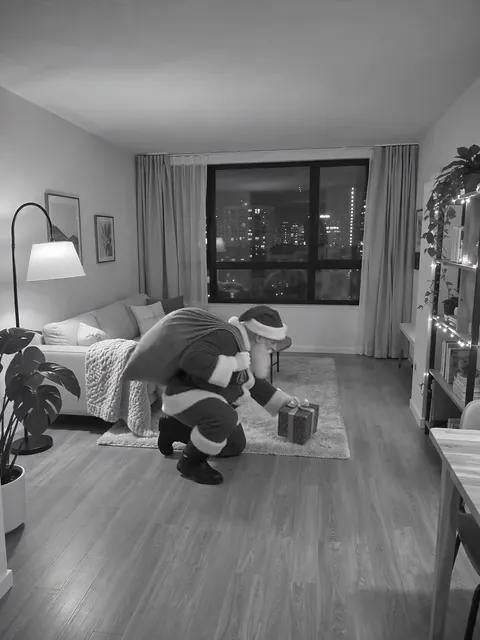
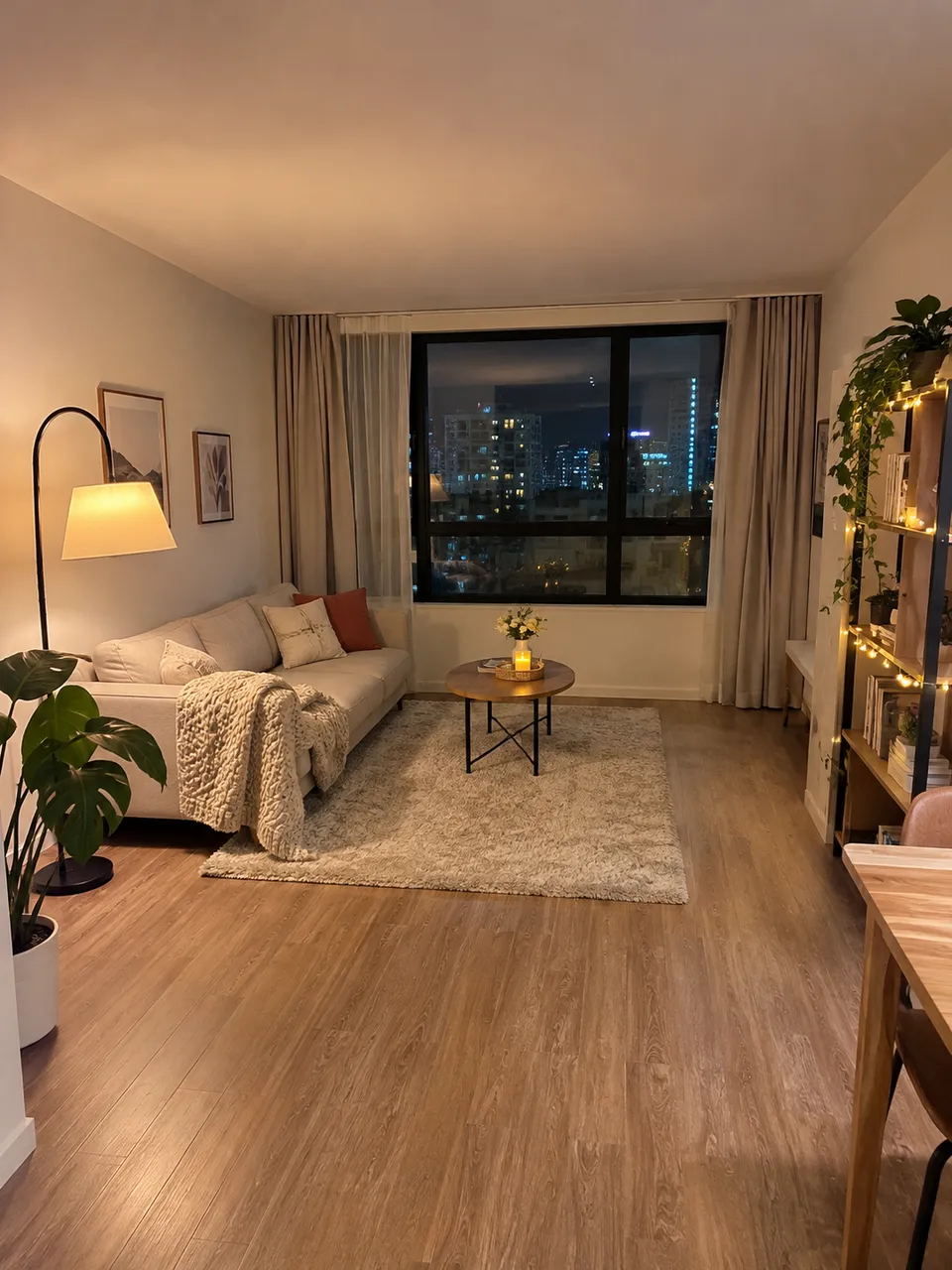
Photo Apartment with no tree or fireplaceTouched up
These clips were made in Dreamina with this template’s prompt and night-vision first frame, then scaled down to 480p, the size zzo.ai delivers. Clips marked “Touched up” had a timestamp the AI drew removed. The room photos were made with AI; no real homes.
How to catch Santa on camera in 3 steps
- 1
Take or pick a photo of the room
The living room with the tree, the fireplace, the hallway or the front door: wherever Santa should appear. Shoot it wide, from a corner and a little above eye level, the way a home camera would see it. No people are needed in the photo.
- 2
Upload it and press Generate
Sign in, add the photo (JPG, PNG or WebP, up to 10 MB) and tick the box to confirm you may use it. The button shows the price, 200 credits, before anything is charged.
- 3
Download the clip
In a few minutes your 10-second clip opens in Creations, ready to download as an MP4 and share. If a run fails, the credits come back automatically and you can try again.
Which photo works best
- A wide shot of a whole room or doorway, taken from a corner, so Santa has space to walk in.
- Your own room with something the family recognises: the tree, the stockings, the sofa, the front mat.
- Normal room light. The clip turns it into black-and-white night vision for you.
- Portrait for phones and Reels, landscape for a TV: the clip keeps the shape of your photo.
- Photos with people in them: they are not needed, and faces may change in the result.
- Close-ups of a single object: Santa needs floor space to walk across.
- Screens, letters and readable papers in the frame: AI tends to garble text.
- Photos of someone else’s home or camera feed that you don’t have the right to use.
Sharing it on TikTok, Reels or WhatsApp
- Portrait photos make portrait clips that fill a phone screen; landscape photos suit a TV or a family group chat.
- The clip comes with its own quiet sound. For a trend video, add music inside TikTok or Instagram, where the songs are licensed for that use.
- When you post it publicly, say it was made with AI.
- Make a second take for each room you like: every run is 200 credits, and the smallest pack covers 3 clips.
Other ways to catch Santa on camera
Prices as listed on November 8, 2026. Check the app or site before you pay; they change often.
| Option | Cost | What you do | Good to know |
|---|---|---|---|
| This template | 200 credits (about $2.00); packs from $9.99 | Upload one photo of your room | A 10-second clip of your own room with sound, in the browser on any phone or computer. No subscription. |
| Single-clip iPhone apps (e.g. Sleighed) | US$3.99 per video, or US$9.99 for 10 (App Store listing) | Upload a photo in the app | Good if you already use the app; iPhone only. |
| Doorstep video services (e.g. Christmas Cam Magic) | £5.99 for an 8-second video (store listing) | Upload a photo of your doorstep | Made for front doors rather than rooms. |
| A general AI video generator | Per clip or a monthly plan, depending on the tool | Write and rewrite a prompt yourself | Full control, but it usually takes several tries to get the camera look right. |
| Someone in a Santa suit | The cost of a costume | Act it out in front of your own camera at night | Real footage of a real person, the classic way; older children may recognise who it is. |
Santa on a doorbell camera, without owning one
The joke works because everyone knows what home-camera footage looks like: black and white, a fixed view from up in a corner and a little grain. This template draws exactly that from your photo, so it doesn’t matter whether you have a security camera, which brand it is, or where it points. A photo of the front door at doorbell height gives you the doorstep version; a photo of the living room gives you the classic “Santa by the tree” clip.
Making it believable, kindly
Little details sell it: a photo of your own tree, the plate of cookies you really put out. Show it on the morning of the 25th, on a phone rather than a big screen, where the low resolution looks natural. Some families prefer a costume, some prefer AI, some prefer neither; the clip is for fun, and you decide how and when to tell the story behind it.
When a result goes wrong
The usual problems, why they happen and what to change.
The room in the clip doesn’t look like mine
Why: Very dark, blurry or close-up photos give the AI too little to keep.
Fix: Use a sharp, wide photo in normal light, taken from a corner of the room.
Santa walks through the furniture or his hands look odd
Why: AI video still struggles with hands and with objects in a crowded room.
Fix: Pick a photo with clear floor space between the door and the tree, then run it again.
Stray text or numbers appear in the picture
Why: AI sometimes adds camera-style text on its own, and draws it garbled.
Fix: Try another take; or crop that edge in your phone’s editor before posting.
My photo was refused
Why: Every upload goes through our content check, and some files are too large or in an unsupported format.
Fix: Use a JPG, PNG or WebP under 10 MB of a room without people. If a run fails after you press Generate, the credits are refunded automatically.
Questions
Updated 2026-11-09
How do I catch Santa on camera?
Upload one photo of the room where Santa should appear, press Generate, and download the 10-second night-vision clip a few minutes later. You don’t need a security camera: the clip is made from your photo and only styled like home-camera footage.
Has anyone ever really caught Santa on camera?
No. Clips like this one are made with AI, and this page doesn’t claim otherwise. The video is a Christmas surprise to play along with, not real footage.
How much does a Santa caught on camera video cost?
Each clip costs 200 credits, about $2.00. Depending on the pack you buy, that is $1.82–$3.33 per clip; the smallest pack is $9.99 for 600 credits. There is no subscription and credits never expire.
Is there a version that costs nothing?
Not on zzo.ai: every clip costs 200 credits. In return there is no subscription, no monthly fee and no watermark, and a failed run gives its credits back automatically.
Do I need a Ring, Nest or other doorbell camera?
No camera is needed. The clip only looks like footage from a home security or doorbell camera; it is made from your photo and is not connected to, or made by, any camera brand.
What photo should I upload?
A sharp, wide photo of your own room or front door, without people, in normal light: the living room with the tree is the classic. JPG, PNG or WebP up to 10 MB.
How long is the video, and does it have sound?
It is a 10-second MP4 at 480p, in the shape of your photo, with a quiet generated soundtrack. 480p is low on purpose for this look: home cameras at night aren’t sharp either.
Can Santa say my child’s name?
No. This is a security-camera clip without speech. For a message addressed to your child, use a personalised Santa video service instead.
Can I use it as “proof” that Santa came?
Many parents show it to young children as a keepsake from Christmas Eve. Whether to show it, and how to explain it later, is your choice. It is an AI-made clip, and older children may notice AI glitches.
Can I post it on TikTok, Instagram or WhatsApp?
Yes, the clip is yours to share. Mark it as AI-made when you post it publicly, and add music inside the app so the song is licensed.
What happens to my photo?
Your photo is used to make your clip and stays in your account with the result. You can remove a generation from your history at any time; when you delete your account, photos and results are deleted within 30 days (see the privacy policy).
What if the result looks wrong?
If a run fails, the credits come back automatically. If it finishes but you don’t like the take, run it again or try a wider, brighter photo; each run is a new take.
Does it work on my phone?
Yes. The page works in any phone or desktop browser; sign in, upload the photo from your camera roll and download the MP4 to your phone.