
AI Photo Editor: Describe the Edit, Keep the Rest
2 models edit photos at up to 4K, from up to 4 photos per edit. Edits start at 5 credits ($0.05), with no subscription and credits that never expire. On the Artificial Analysis Image Editing Arena (checked October 30, 2026), GPT Image 2.5 is #1 (Elo 1,199), Nano Banana 2.1 #6.
Upload up to four photos, say what to change and what to keep, and GPT Image 2.5 or Nano Banana 2.1 returns the edited photo. You see the price before you run it, pay per edit from a one-time credit pack, and credits never expire.
OriginalEdited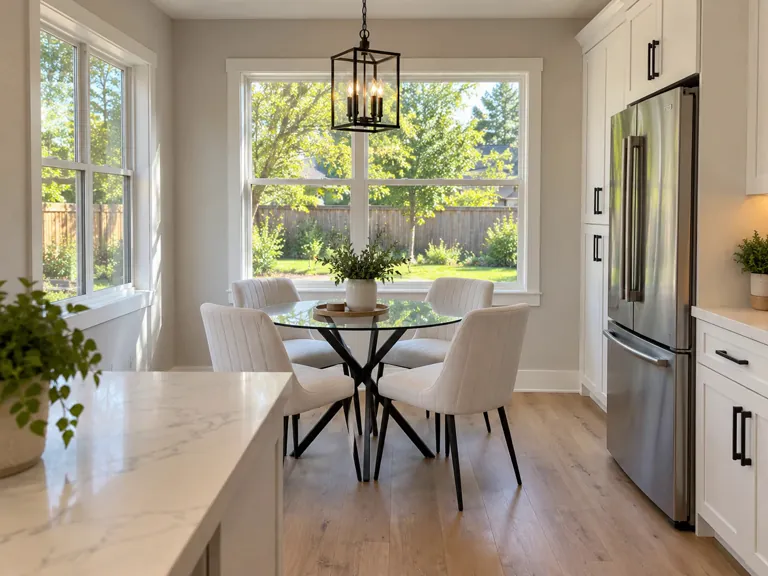
Made with these models
Each one shows the prompt, model and what it costs here. Pick one to start from it.

Supported models and prices
Updated 2026-10-27
| Model | Images per request | Longest side | Aspect ratios | Transparent background | Per image | Arena rank |
|---|---|---|---|---|---|---|
| GPT Image 2.5 | 4 | 1,280 px | 1:1, 4:3, 3:4, 16:9, 9:16 | Yes | 5–45 credits$0.05–$0.45 | #1 · Elo 1,199GPT Image 2.5 Sunburst (max) |
| Nano Banana 2.1 | 4 | 6,336 px | 1:1, 16:9, 9:16, 4:3, 3:4, 3:2, 2:3, 21:9, 4:1, 8:1 | No | 10–30 credits$0.10–$0.30 | #6 · Elo 1,151 |
Per image, from the lowest to the highest quality setting; several images in one run cost that much each. Arena rank is the position and Elo score from blind side-by-side votes (AA-Image-Editing v2.1, checked October 30, 2026) on the Artificial Analysis Image Editing Arena
What you can edit with a prompt
- Remove a person or an object: clutter, a passer-by, something in someone’s hand.
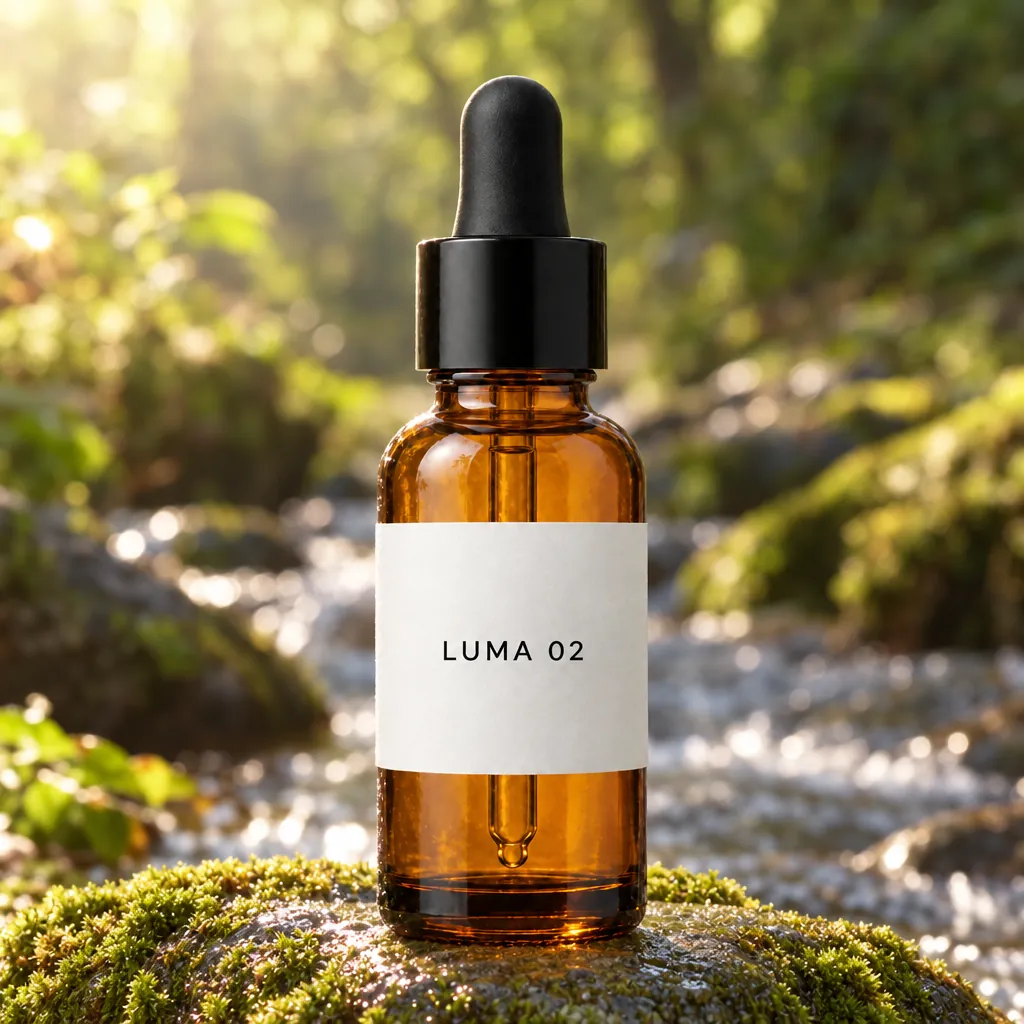
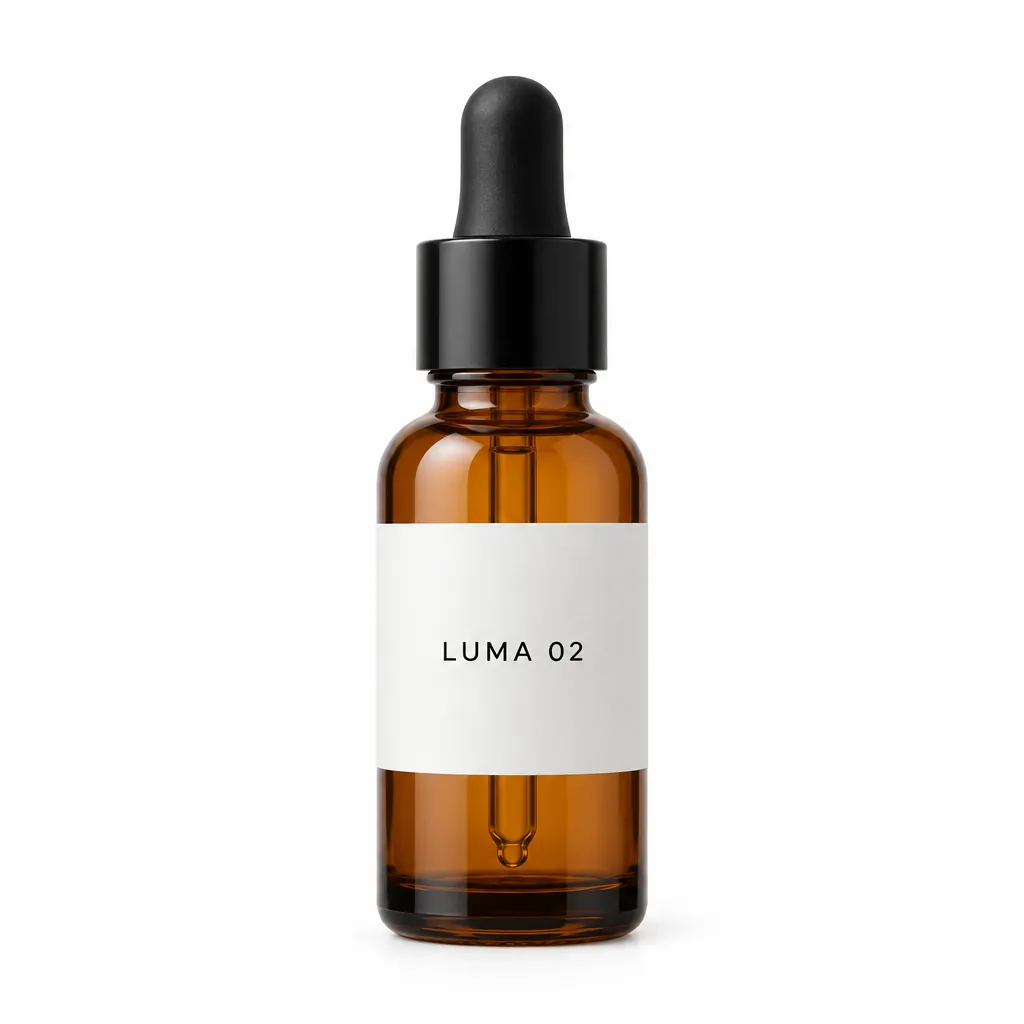
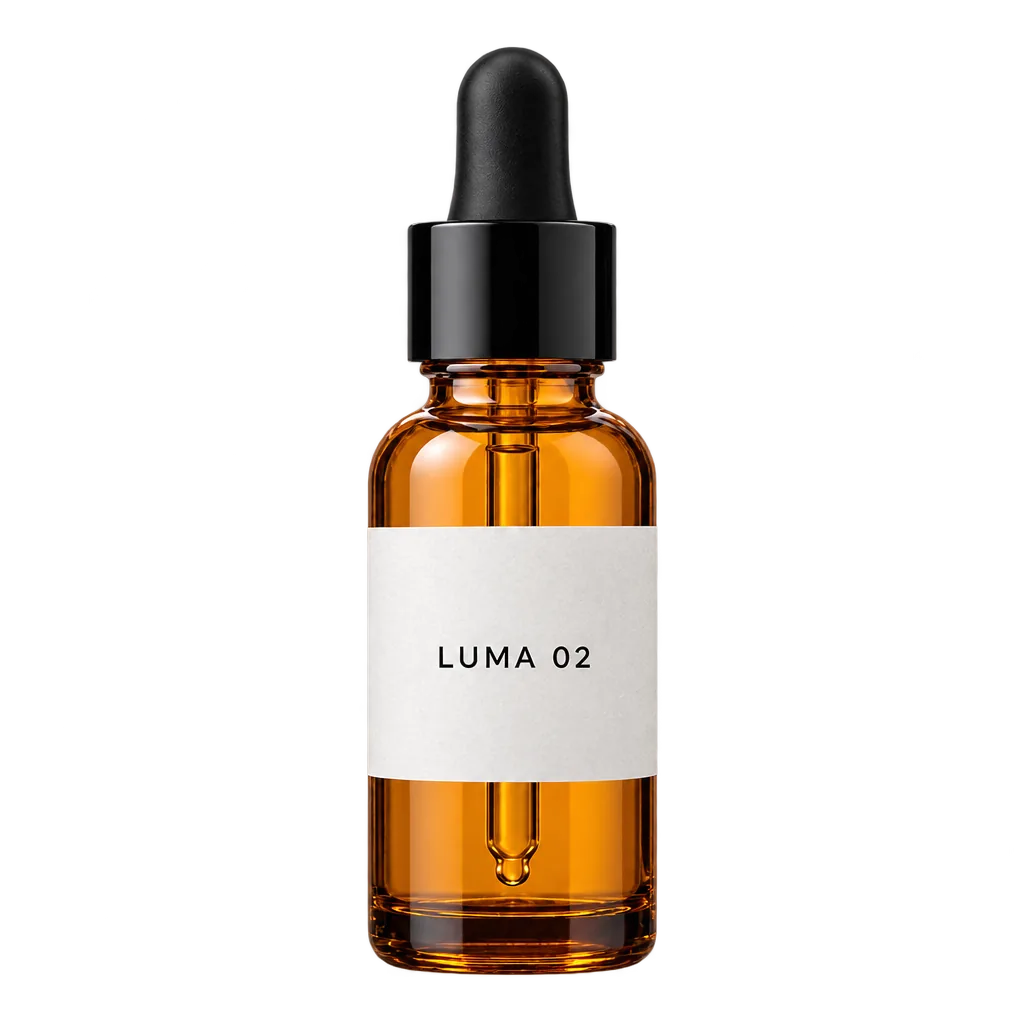
- Change the background or the setting. The amber bottle above went from a studio packshot onto a mossy stone, with its label and cap unchanged; the same bottle on the checkerboard was cut out to a transparent PNG.
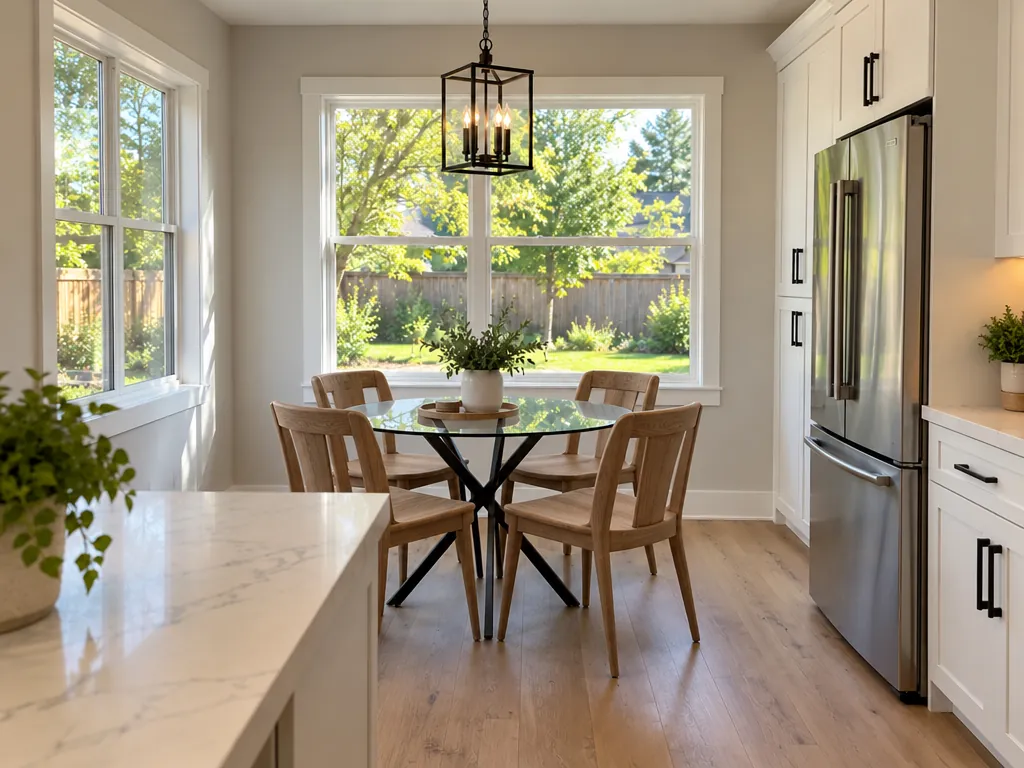
- Swap one thing. In the kitchen above only the chairs changed; the light, the shadows and everything on the counters stayed.
- Change clothes, weather or the time of day, or several of these in one edit.
- Put two photos together: add a pet, a person or a product to a scene.
- Retouch a portrait or restore an old photo.
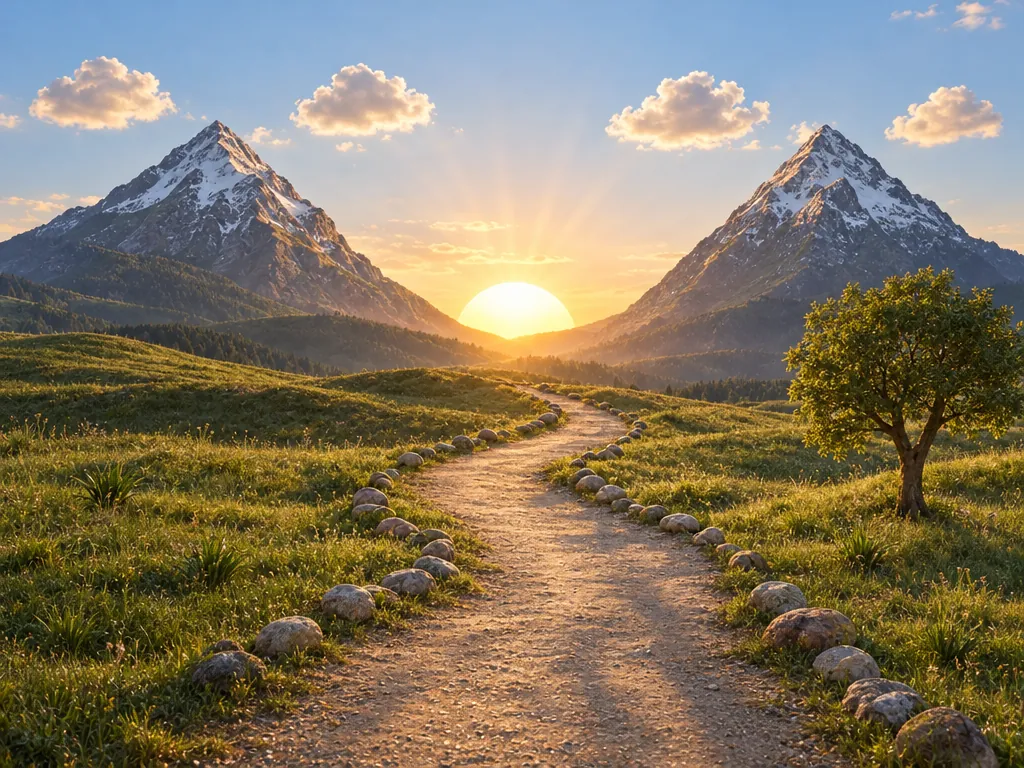
- Turn a sketch into a photo. The valley kept the mountains, sun, tree and stones where the drawing put them.
How to edit a photo without changing the face
Both models redraw the whole image, so “keep the face” is an instruction, not a lock. What helps, from OpenAI’s and Google’s guides and from users’ tests:
- Change one thing per edit, and say it first.
- List what must stay: face, features, skin tone, expression, hairstyle, pose. OpenAI’s own wording: “Do not change her face, facial features, skin tone, body shape, pose, or identity in any way.”
- When something drifts, name only that. A tester on Reddit found a retouch closed the subject’s mouth; “Keep the mouth and gaze exactly as in the original” fixed it.
- Go back to the original after a few rounds instead of editing the edit again.
If a face must stay pixel for pixel, OpenAI suggests pasting the approved edit into the original in an image editor.
GPT Image 2.5 or Nano Banana 2.1: which to pick
From our own same-photo tests (the pairs in the samples above) and published tests that ran these two models (CellCog, Fuser, BulkImagen). Each ran a prompt once, so read them as tendencies. The full side-by-side is on Nano Banana 2.1 vs GPT Image 2.5.
-
Most edits: GPT Image 2.5. In our nine same-photo edits it did better four times (removing a flower, adding a dog, clearing a table, summer to winter), Nano Banana 2.1 twice, and three were ties.
-
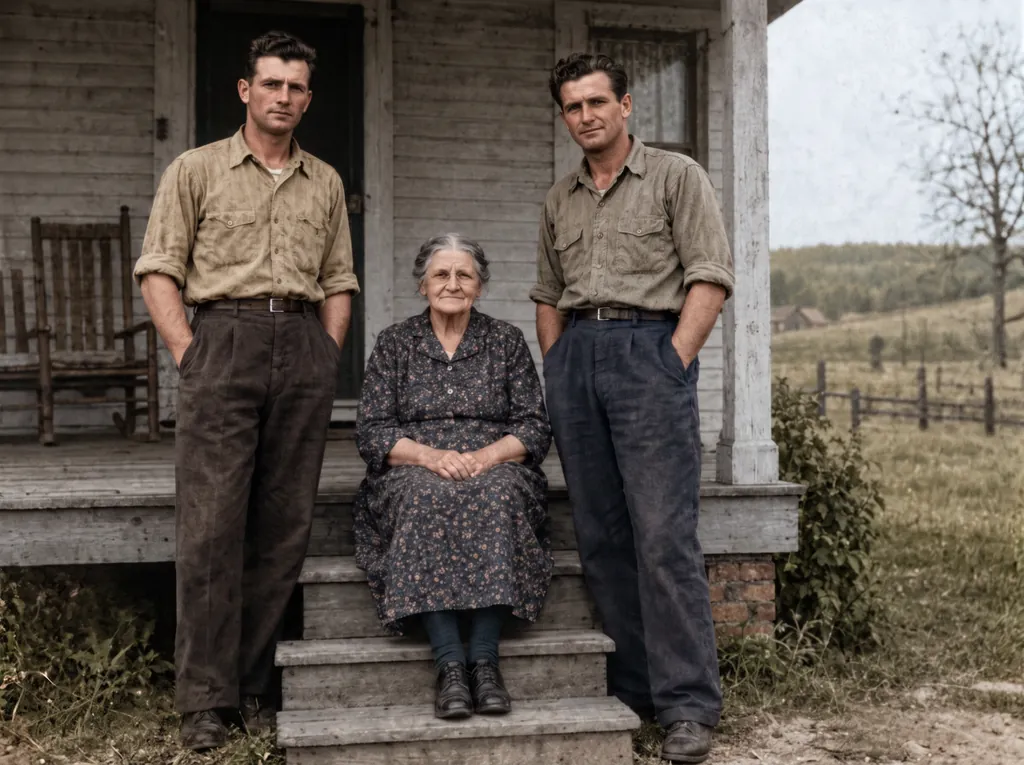
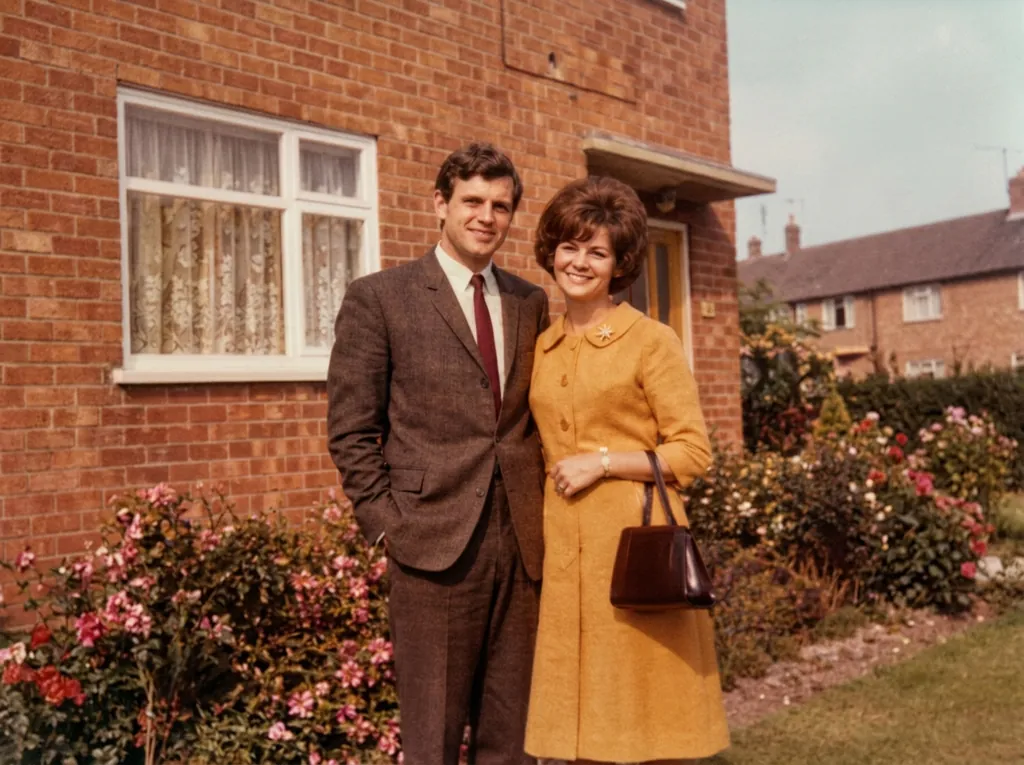
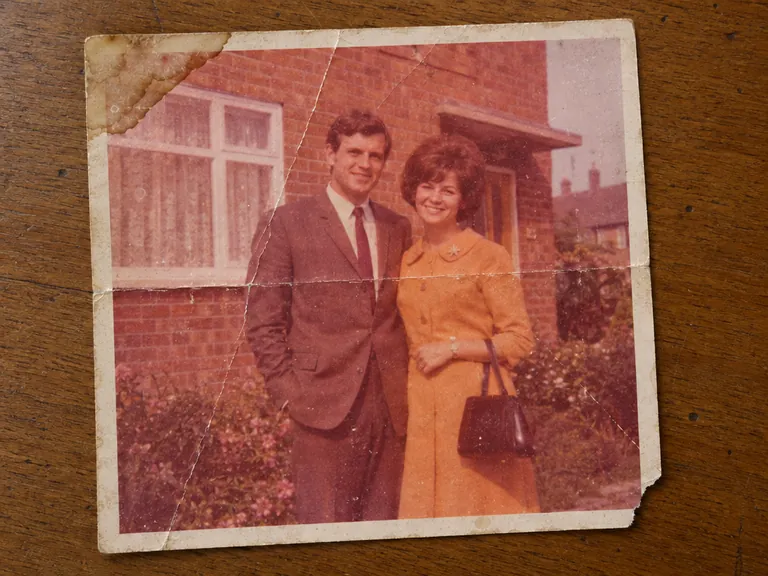
Restore an old photo: Nano Banana 2.1. In both of our restorations it kept the faces and the framing; GPT Image 2.5 cropped in, redrew faces and changed clothing colours.
-
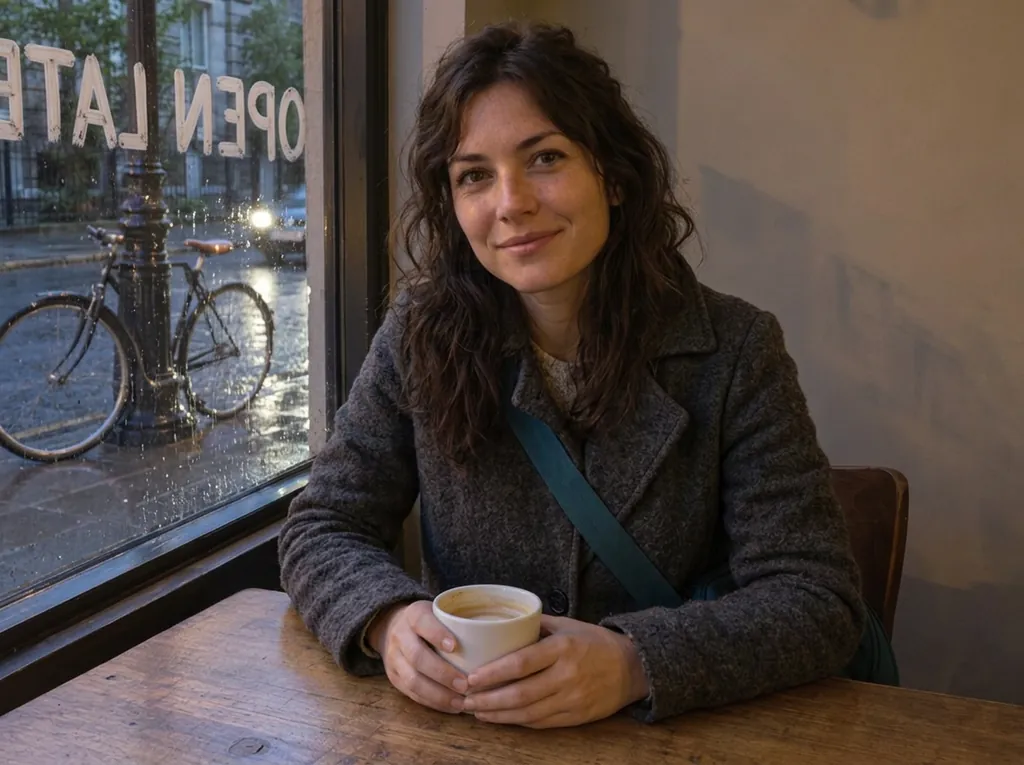
Clothes, weather and a word on the window in one edit: either. Both kept her face, the cup and the bicycle. GPT Image 2.5 wrote OPEN LATE so it reads from inside but dropped her bag strap; Nano Banana 2.1 kept the strap but painted the words mirrored.
-
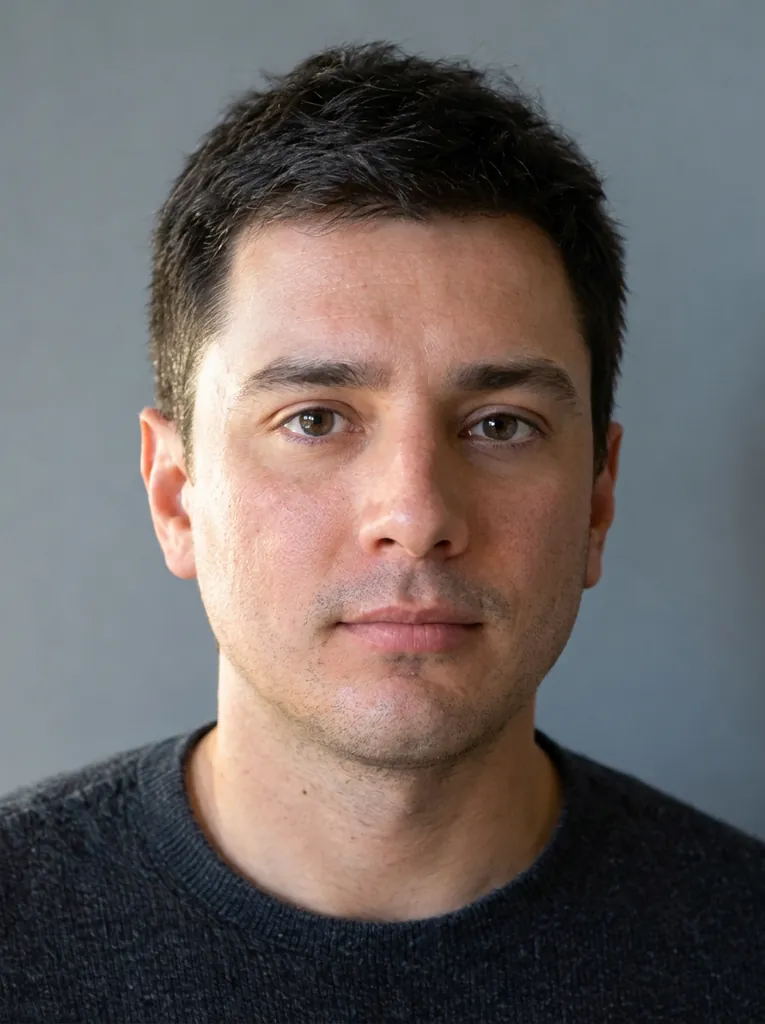
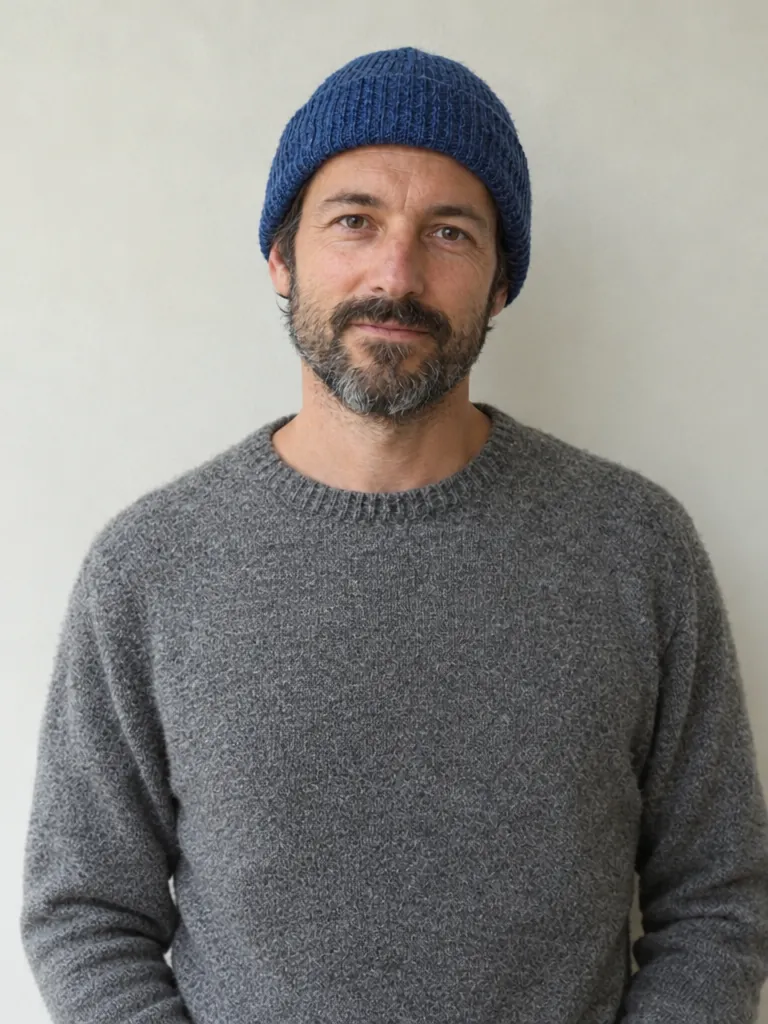
Retouch a portrait: either. Both cleared the blemishes and kept his features; Nano Banana 2.1 kept a little more skin texture.
-
Keep the rest of the photo as it is: GPT Image 2.5. CellCog: it “changed what we asked and left the wall, plant, shadows and framing almost untouched”, while Nano Banana 2.1 made each change correctly but cropped every photo tighter.
-
Keep a product’s small details: GPT Image 2.5. On Fuser’s bottle edit it changed nothing the prompt said to keep; Nano Banana 2.1 restyled the cap collar.
-
Add a pet or an object: try both. In our dog test GPT Image 2.5 placed it naturally and Nano Banana 2.1’s looked pasted in; in CellCog’s cat test 2.1’s cat was “the most natural”.
-
Keep a face from one photo: usually GPT Image 2.5. In Fuser’s test it carried the face over clearly, while Nano Banana 2.1 loosened the curls and faded the freckles. Not every time: in BulkImagen’s Halloween test 2.1 kept the face better.
-
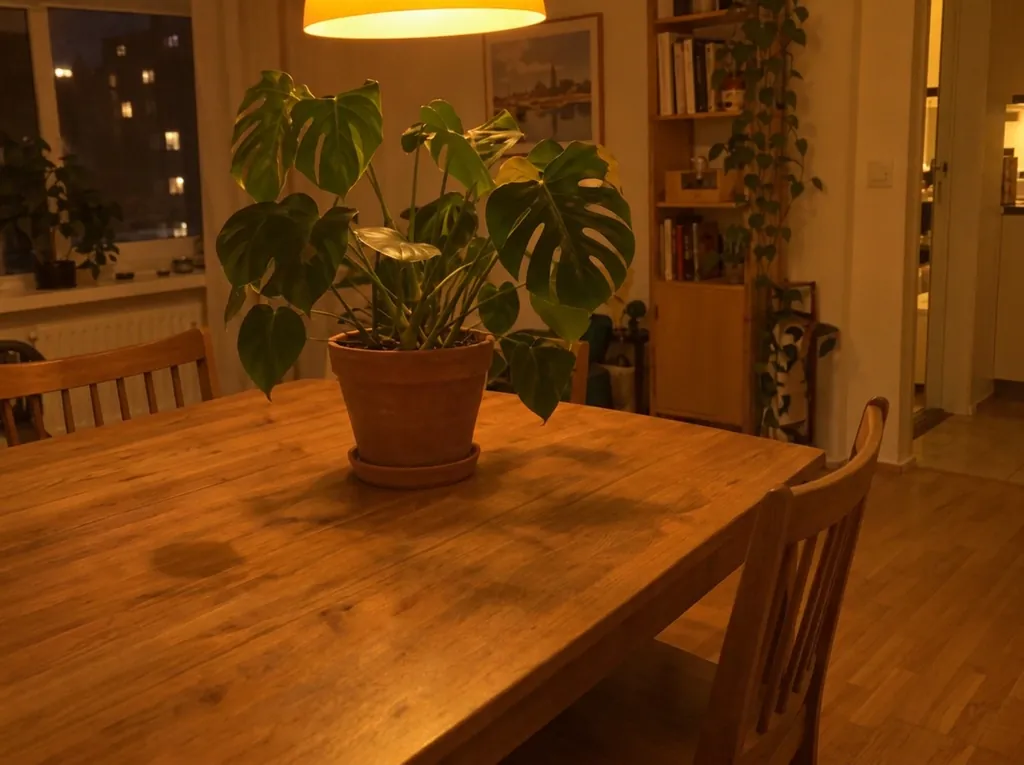
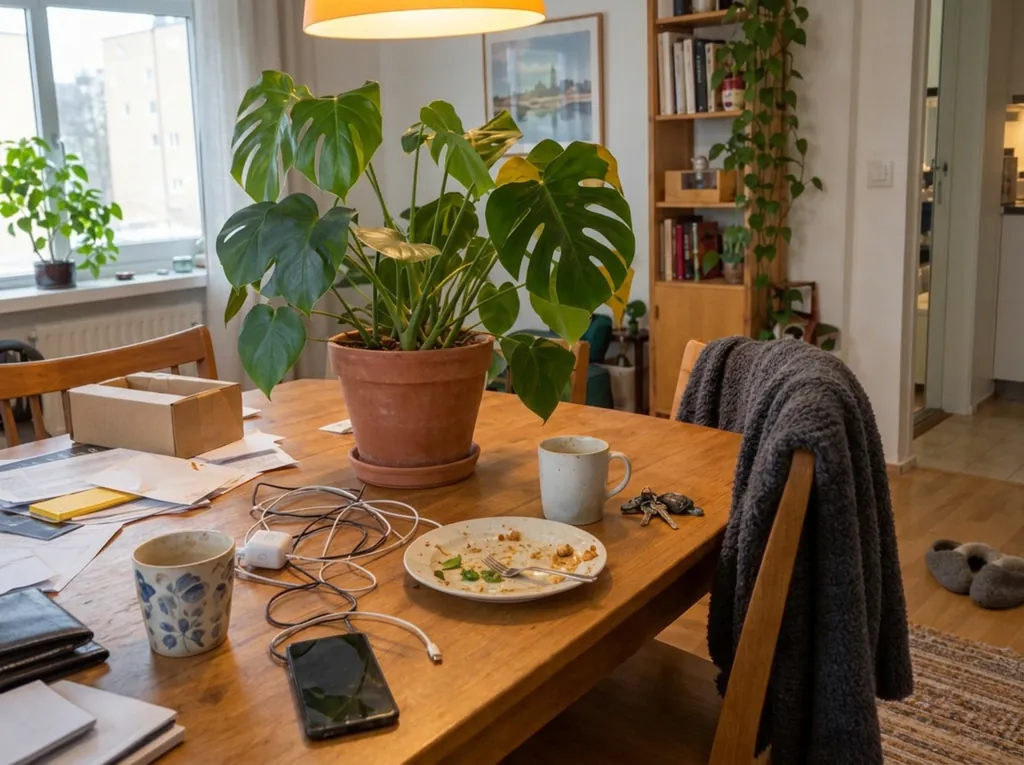
Remove clutter: either, check the details. Both cleared our table; Nano Banana 2.1 also removed the rug and left a mark, GPT Image 2.5 didn’t. BulkImagen found 2.1 cleared all six of their photos.
-
A large result: Nano Banana 2.1, up to 4K.
-
A transparent PNG: GPT Image 2.5 only.
Both run on the same credits, so when it matters, run the same prompt on each.
Photo editing prompts you can copy
Each is word for word from its source. Upload your photo first.
Remove an object (OpenAI’s GPT Image 2.5 guide):
Remove the flower from man's hand. Do not change anything else.
Change clothes, weather and text in one go (Fuser’s ten-model test; GPT Image 2.5 kept the room):
Change her yellow rain jacket to a charcoal-grey wool coat. Make it a rainy evening outside the window, with wet street reflections. Write the words OPEN LATE in white painted letters on the window glass. Keep her face, hair, pose, the coffee cup, the table and the bicycle exactly the same.
Change one item in a room (Google’s Gemini image editing docs):
Using the provided image of a living room, change only the blue sofa to be a vintage, brown leather chesterfield sofa. Keep the rest of the room, including the pillows on the sofa and the lighting, unchanged.
Retouch a portrait (from a Reddit user’s test, called “a clean win”):
Retouch this photo professionally: even out skin tone, reduce blemishes, sharpen focus, and balance lighting and color. Do not change the person's face shape, features, proportions, hairstyle, or expression. Keep the result looking like a real, unedited photo of the same person.
Restore an old photo (BulkImagen’s five-model test):
Restore the old photograph from the reference image. Show only the photo itself, filling the frame: no table, no paper border, no background around it. Remove all creases, folds, scratches, dust, stains and tears, rebuild any missing corner, and fix the faded and shifted colors. Colorize it with natural, realistic skin tones and period-appropriate clothing colors. Keep every person exactly as they are: same face, same features, same expression, same age, same hairstyle, same pose and same clothing. Do not beautify, slim, smooth or modernize anyone. Keep the original composition and framing. The result should look like a clean, well-preserved original photograph from the same era, not a modern photo.
Change the season (OpenAI’s guide):
Make it look like a winter evening with snowfall.
Add a pet from a second photo (OpenAI’s guide; upload both):
Place the dog from the second image into the setting of image 1, right next to the woman, use the same style of lighting, composition and background. Do not change anything else.
How to edit a photo with AI in 3 steps
- Upload the photo, or up to four photos to combine.
- Describe the change in one sentence, then what must stay the same.
- Generate and compare with your original. Fix any leftover detail with one more edit. A failed or refused edit costs nothing.
Where edits still slip
- Faces and smiles. Models tend to add a smile or polish a face, most of all when restoring old photos.
- Small details. A cap collar, a chalk underline or lace can change or disappear; a ring asked for one finger can land on the next.
- Colour. Edits can come out slightly brighter, and a black-and-white photo can be quietly colourised; say “keep it black and white”.
- The whole frame. A model can recompose the picture or rebuild a wall it wasn’t asked to touch.
- The same image again. Both models sometimes return an unchanged picture; rephrase the change and run it again.
Questions
Updated 2026-10-27
Can I edit a photo with AI just by describing the change?
Yes. Upload a photo and write what to change, for example “Remove the flower from man’s hand. Do not change anything else.” GPT Image 2.5 or Nano Banana 2.1 returns the edited photo. The button shows the price before you run it.
Can AI edit my photo without changing my face?
Mostly, but not pixel for pixel. Both models redraw the whole picture, so a face can shift slightly. Name what must stay (“Do not change her face, facial features, skin tone, body shape, pose, or identity in any way”, from OpenAI’s guide), change one thing per edit, and compare with your original. Google’s own model card says Nano Banana 2.1’s character consistency “is not always perfect”.
Why does AI change my face?
The model doesn’t cut and paste: it paints a new image that follows your instruction, and faces are where small differences show most. Each extra round of edits adds a little drift. Start new edits from your best result or the original, and when one detail changes, name it and ask to keep everything else from the last edit.
How do I remove a person or object from a photo with AI?
Upload the photo and name what to remove, then say what stays: “Remove the flower from man’s hand. Do not change anything else.” Google’s own guide uses “Remove the man from the photo” and advises being explicit about what to keep exactly the same.
Can I change the background, or make it white or transparent?
Yes. Describe the new background and say “change only the background and lighting”. For a plain white backdrop, ask for it. For no background at all, choose GPT Image 2.5 and switch on Transparent background: you get a PNG with a real transparent background.
Can I combine two photos or add a person or pet to a photo?
Yes. Add up to four photos to one edit and say which does what, as in OpenAI’s example: “Place the dog from the second image into the setting of image 1, right next to the woman… Do not change anything else.” With GPT Image 2.5, each added photo adds a little to the price, which the button includes.
Can I change the text in an image?
Yes. Put the new wording in quotes and say what stays: “Change only the headline to ‘Summer Sale’. Keep the layout, colours and photo exactly as they are.” Check the spelling in the result. Translating all the text in a busy image is less reliable: in our own Spanish test the layout survived but the grammar did not.
Is this the same as editing photos in ChatGPT or Gemini?
The same model families: GPT Image 2.5 is OpenAI’s current image model, and Nano Banana 2.1 is the Google model the Gemini app gives people on a paid Google AI plan (without a paid plan you get the older Nano Banana 2). Here you choose the model and the quality, see the price before each edit, and pay per edit instead of a subscription.
Will editing lose quality? What resolution do I get?
The edited photo is a new image at the size you choose: up to 1024×1024 for square and 1280 pixels on the long side with GPT Image 2.5, and up to 4K with Nano Banana 2.1. Fine patterns, small text and faces can shift, more with every repeated edit, so keep your original.
Is there a watermark? Can I use the edited photo commercially?
zzo.ai adds no watermark. Both models embed invisible marks that identify the image as AI-made (SynthID; GPT Image 2.5 also adds C2PA metadata), and some platforms read them. Under our terms you can use the result commercially, as long as you have the rights to the photo you uploaded and the consent of anyone in it.
Are my photos private? Are they used to train AI?
Your photo and prompt are sent to the service that runs the model, which passes them to the model’s developer (OpenAI or Google), only to make the edit. OpenAI says data sent through its API is not used to train its models unless the customer opts in. Your results stay in your history until you delete them. Details are in our Privacy Policy.
Can I edit photos without paying, or do I need a subscription?
Every edit is paid with credits, and there is no subscription: buy a credit pack once, use it on any model, and the credits never expire. You pay per attempt, failed or refused edits are refunded automatically, and the price shows on the button before you run it.
Why was my edit refused?
Both models refuse some edits, for example of public figures, minors and some photos of real people, and GPT Image 2.5 blocks swimwear edits. Don’t upload photos of people without their consent. A refused edit costs nothing: the credits come back.